Positions, Pending Orders and History
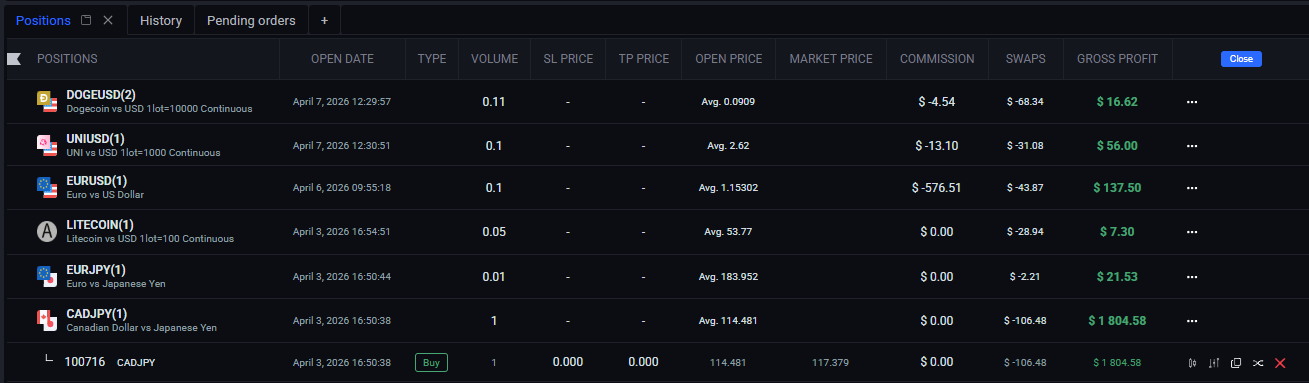
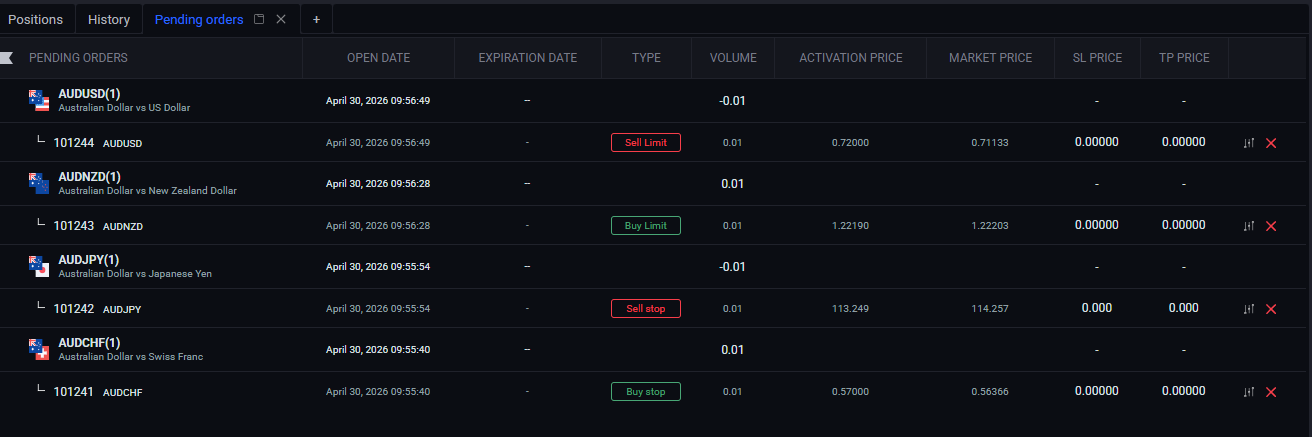
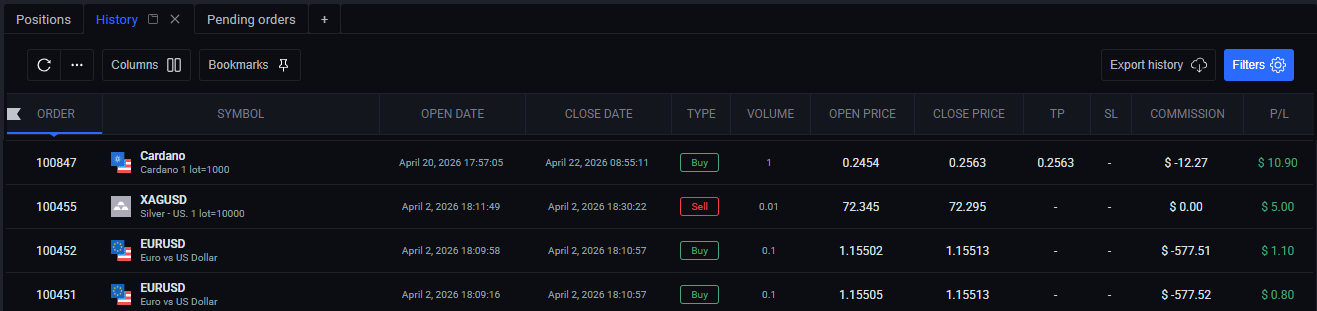
These modules display a list of your completed Market execution, Pending order trades and Closed trades.
Structure of the modules
Here are the key indicators shown for each module:
- Positions:A unique identifier for each trade.
- Open Date:The date and time the trade was executed.
- Type: Whether the trade was a Buy or Sell order.
- Volume:The size of the trade in terms of the traded asset.
- SL Price:The Stop Loss price set for the trade.
- TP Price:The Take Profit price set for the trade.
- Open Price:The price at which the trade was executed.
- Market Price:The current market price of the traded asset.
- Commission:Any fees charged for the trade.
- Swaps: Any overnight financing charges applied to the trade.
- P/L (or Gross Profit):The profit or loss on the trade, calculated as the difference between the Open Price and Market Price, adjusted for any commissions and swaps.
For Pending Orders, two additional indicators are shown:
- Expiration Date:The date and time after which a Pending Order is cancelled if it has not been activated.
- Activation Price:The price at which a Pending Order becomes an active trade, either a Buy or Sell order.
For History there are following indicators:
- Order: the number of the order.
- Symbol:the name of the symbol.
- Close date:the date of the closing.
- Close price:the price at the moment of the closing.
There are total values below: Total swap, Total commission and Total P/L.
These indicators provide valuable information to help you keep track of your trades and monitor their performance. You can sort this information from highest to lowest (or vice versa) by clicking on preferable column.
It is possible to organize your asset groups by assigning them different colors. For instance, in the example, there are three groups of assets - Crypto, Commodities, and Forex. You can assign a color to each group, and then select the color you want to view by clicking on the icon located to the left of the "Positions" column. This way, you can easily sort and view your assets based on the color you have assigned to them (the same is possible for all three tabs).

Positions, Pending orders
In the Positions window your positions are grouped and sub-grouped for easy access. By clicking on the appropriate section, you can view the details of each order.
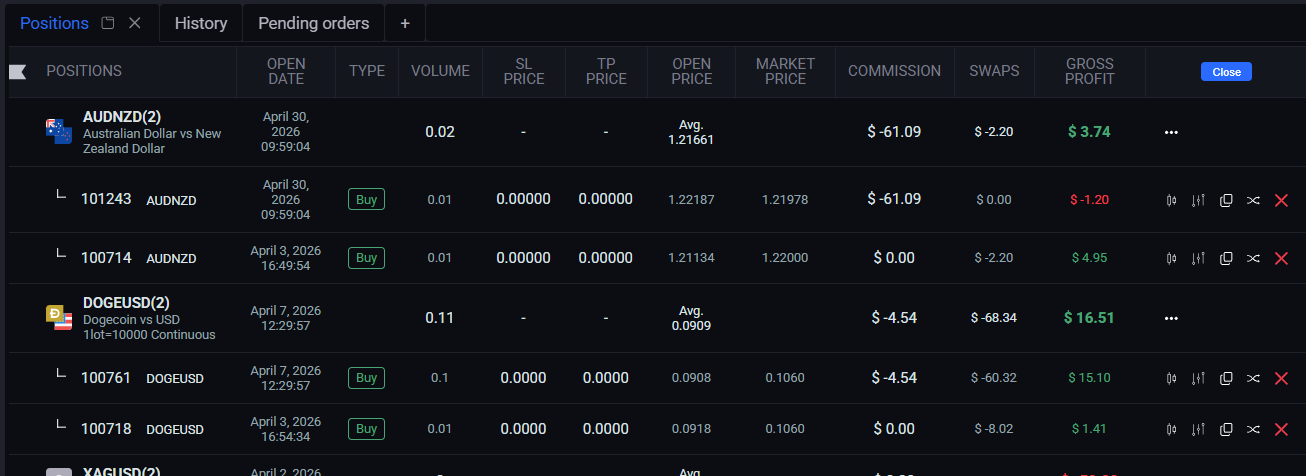
You have the ability to modify, double up, reverse and close a specific order by clicking on the relevant icon on the right side of the order:
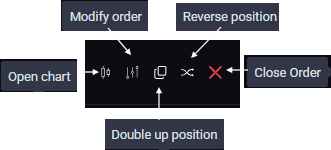
- Open chart - opens the Chart of the asset;
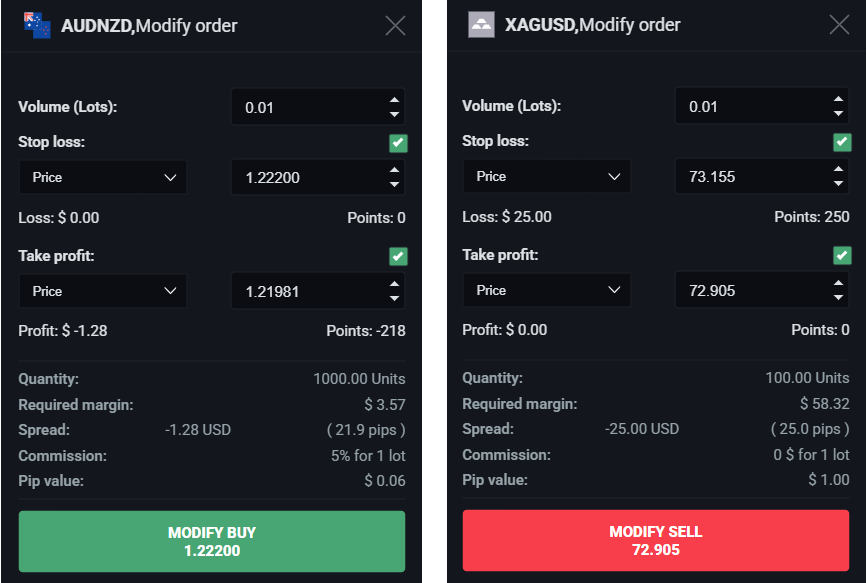
- Modify order - opens the Modify panel. You can modify Stop loss and Take profit there;
- Double up position - opens the duplicate Position;
- Reverse position - reverse the Position (Buy change to Sell and vice versa);
- Close order.
You have the different ways to close an order, depending on your preference:
1. Close All - this gives you the option to close all trades, all trades with profit, or all trades with loss.
2. Close a group - by clicking the three dots icon on the right of the group you wish to close.
3. Close a specific order - by clicking the cross icon on the right of the individual order you wish to close.
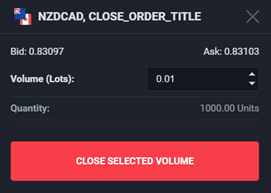
- Close a part of the specific order – there is an option of the partial closing: by clicking the cross icon on the right of the order you wish to close and then changing the Volume in the opened window and clicking the Close selected volume button.
History
Once an order is closed, it will appear in the History section.
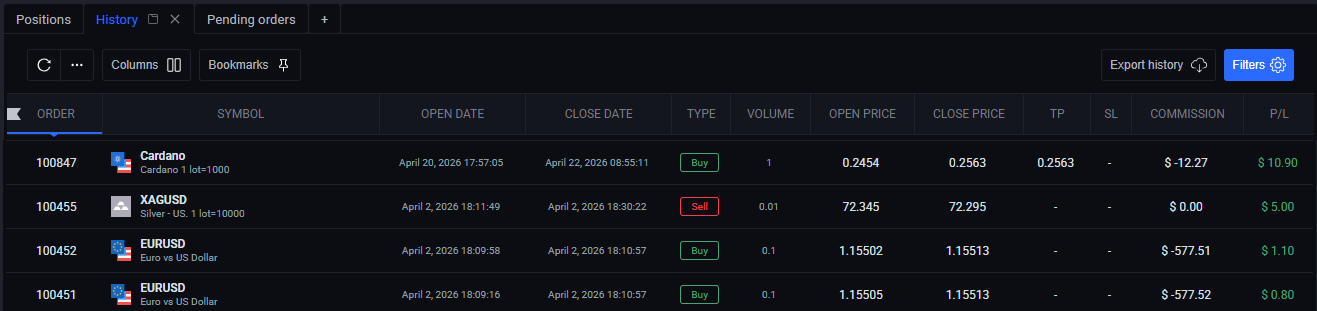
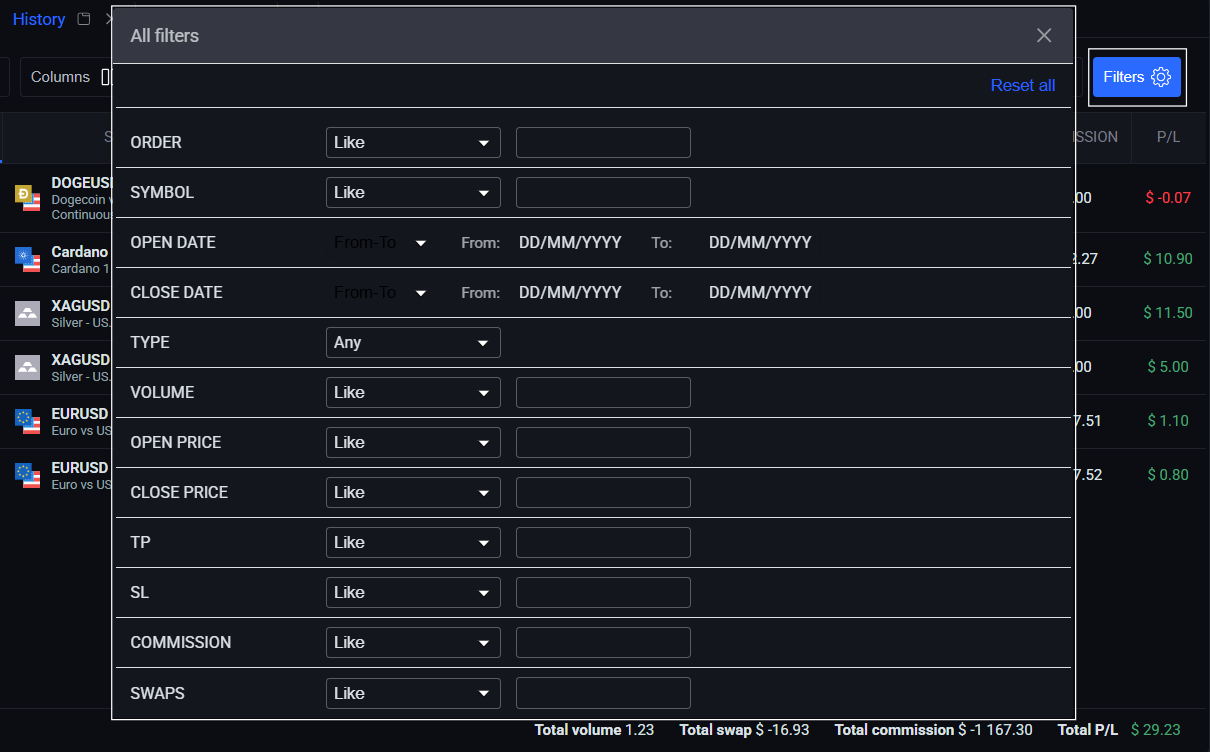
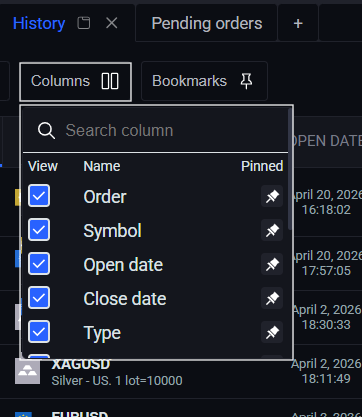
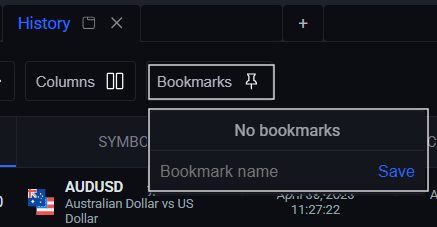
You can customize the display of this tab using the Columns feature, as well as create quick filter shortcuts using Bookmarks for faster navigation.
To export data from the History section, simply click the Export history button. The process will begin immediately, and the system will generate a file in CSV format.
Employ the filtering feature to expedite information retrieval and enhance your overall efficiency.