Header values and buttons
The header bar provides quick access to key account information, navigation, and platform controls. It includes your account indicators, account name and ID, notification and cashier buttons, and a drop‑down menu.

Header Indicators

| Indicator | Description |
|---|---|
| Balance | The total amount of funds in your account, including open trades and any unrealized profits or losses. |
| Credit | Any bonus funds or credit added to your account. |
| Equity | The current market value of your account, reflecting open trades and realized profits or losses. |
| Margin | The amount required to open and maintain your current positions. |
| Free Margin | The available funds in your account that can be used to open new trades. |
| Margin Level | The ratio of your Equity to your Used Margin, shown as a percentage. A higher margin level means a lower risk of margin calls. |
| P/L | Profit or Loss — the net gain or loss from your trades. |
Account Information

This section displays:
- Clients avatar
- Client name
- Account ID number
Notifications
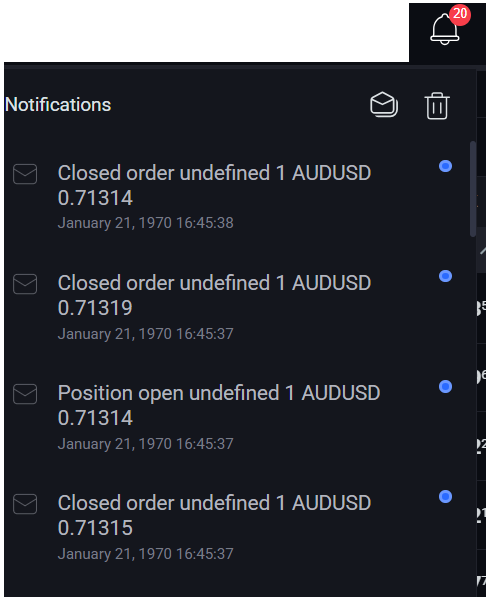
View configured notifications such as order opening, closing, or modification. Use Read all icon to clear the new notification indicator, or Delete all icon to remove the list entirely.
Main Menu
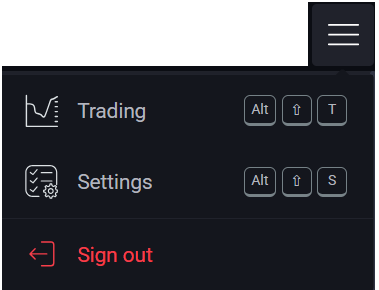
The platform’s primary navigation is organized into the following sections:
- Trading -Opens the main trading window with the Chart, Market Watch, Positions etc.
- Settings -Customize various indicators and enable or disable platform features. Available settings categories:
-General Settings: currency, language, time zone, mode and several interface adjustments.
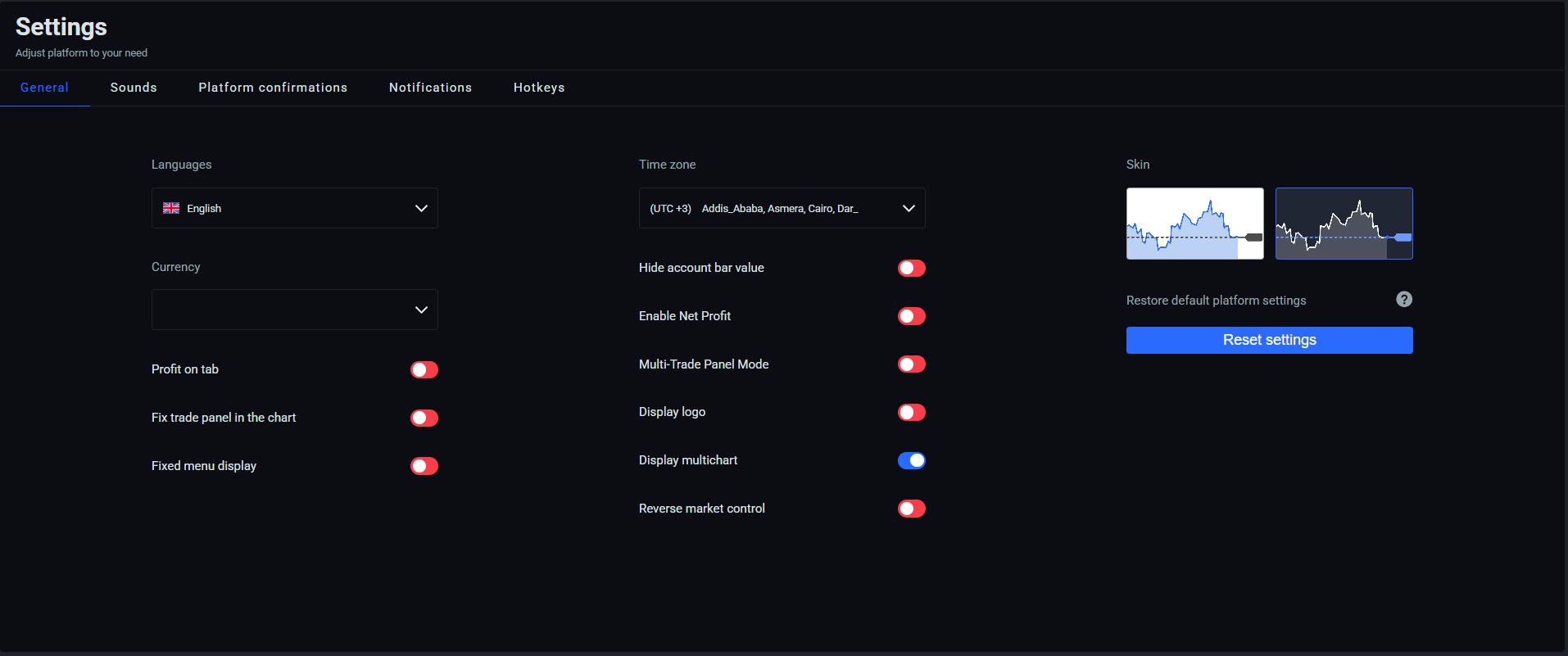
- Sounds Settings: adjust volume or enable/disable sound effects for specific actions.
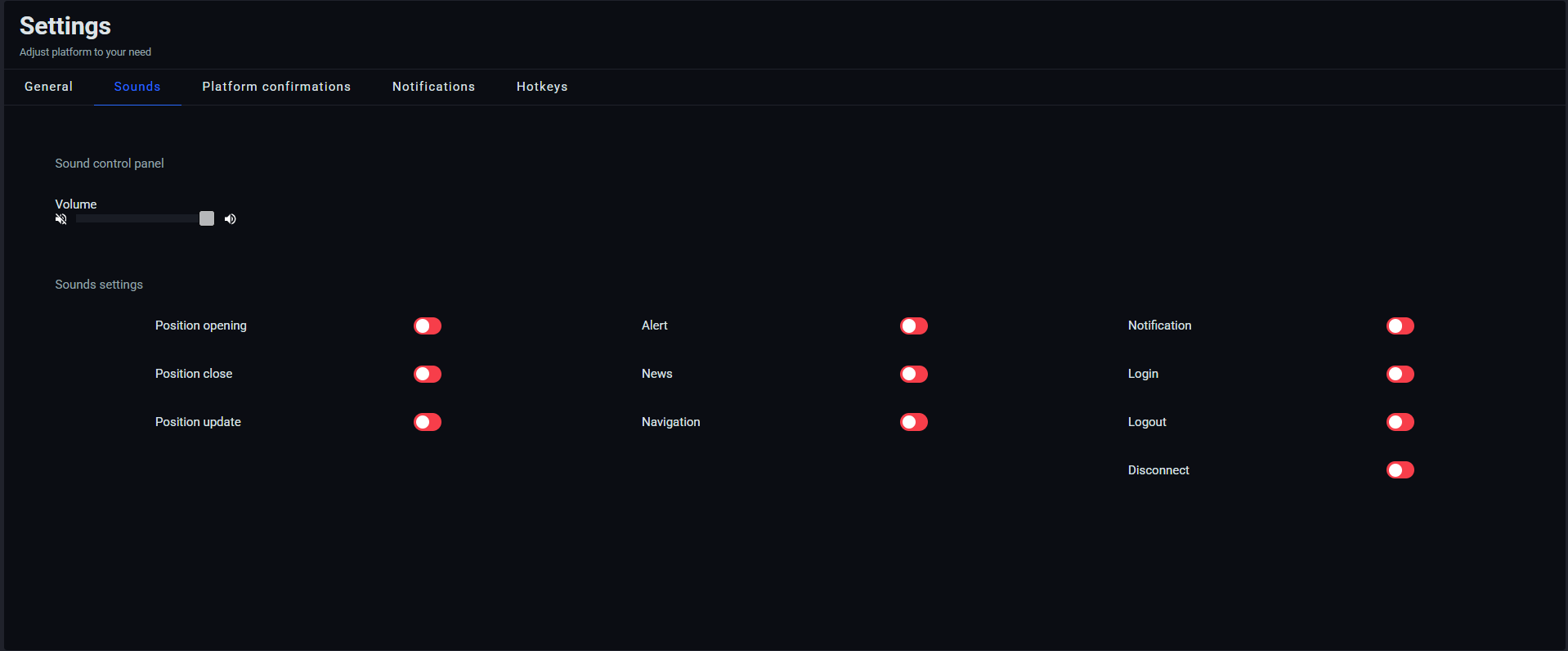
- Platform Confirmations: enable or disable confirmation pop‑ups.
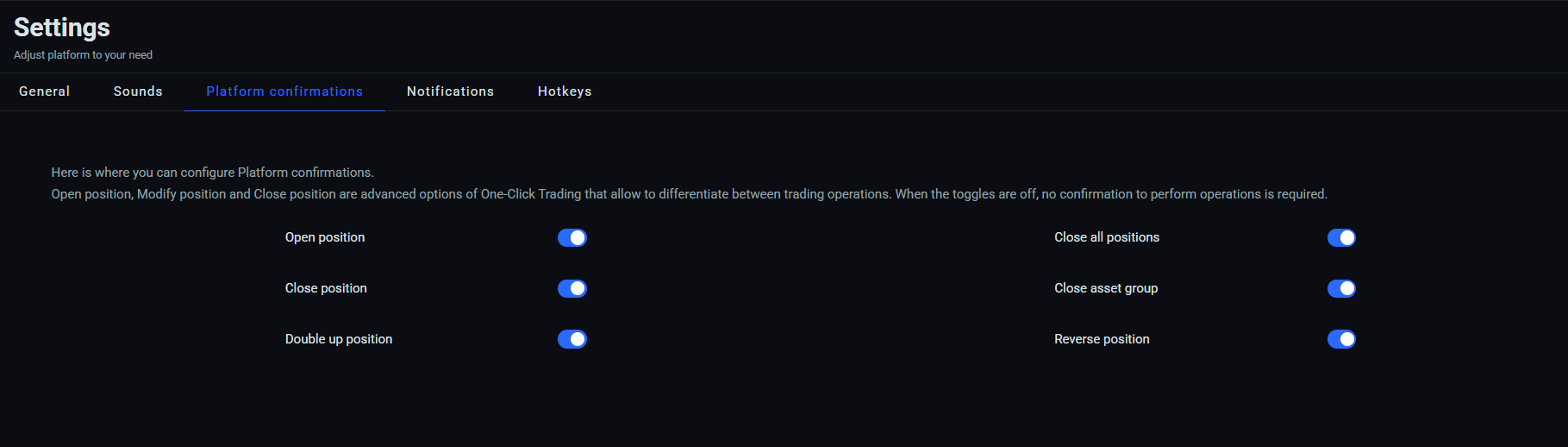
Note: Open position and Close position are advanced options for One‑Click Trading. When toggled off, no confirmation pop‑up appears.
- Notifications:

Enable or disable:
-
Price alerts — a pop‑up appears when a set price level is reached
-
News notifications — a pop‑up with a short summary appears for new articles
-
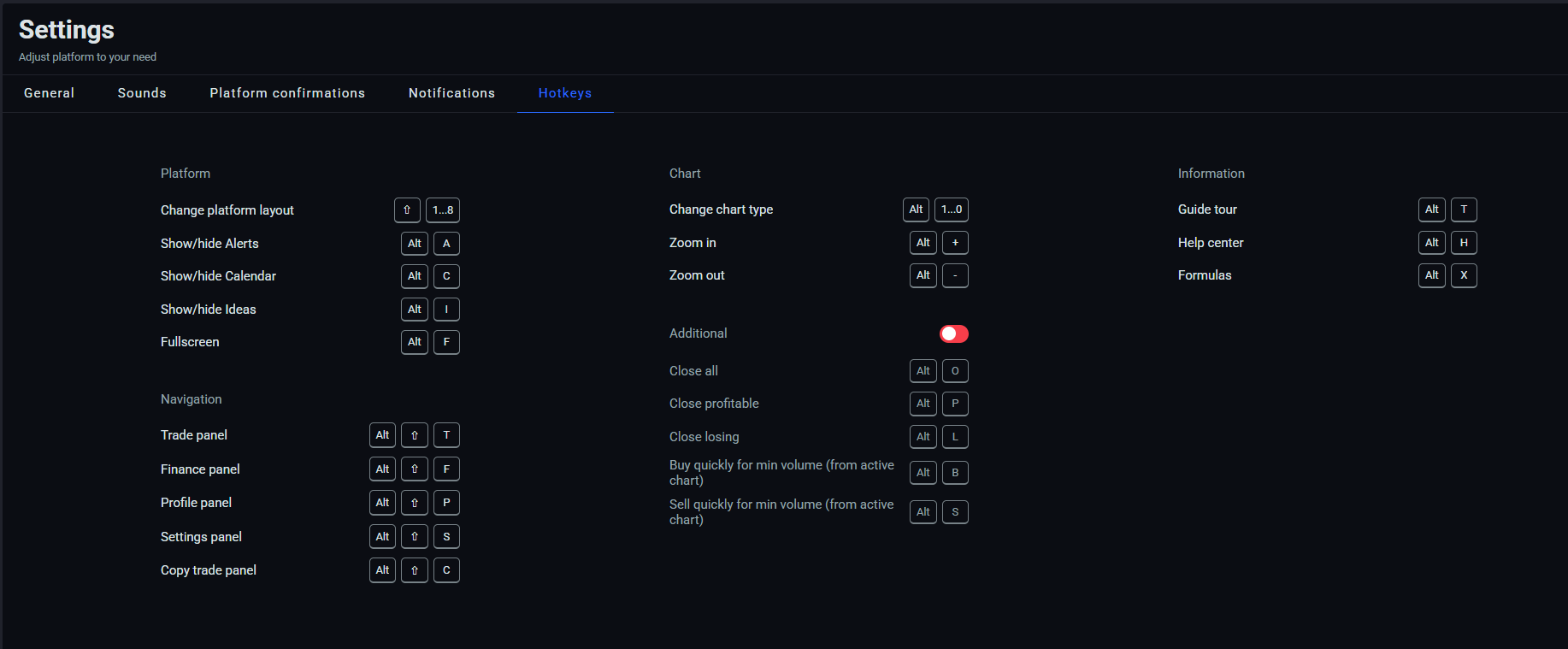
Hotkeys: View available keyboard shortcut combinations. You can also enable or disable additional shortcut sets.
Sign Out
Click to log out of the platform. You may be redirected to the brand’s website (configurable).